Create SRX File
Create an SRX file that can be used for segmenting documents by translation tools that support SRX 2.0.
Procedure
- Select or click the
 button on the toolbar.
 - Click the Add Language button.The Language dialog appears:
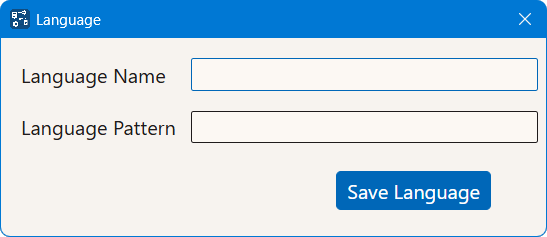
- Enter a meaningful name for the language in the Language Name text box.
- Enter a regular expression to indicate the languages supported by the new rule in the Language Pattern text box.
- Click the Save Language button.The new language rule appears in the Languages table of the editor.
- Follow these steps as many times as necessary to populate the language rule
with segmentation rules:
- Click the Add Rule button.The Rule dialog appears:
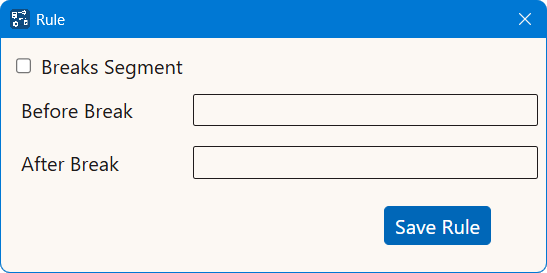
- Select the Breaks Segment check box if the new segmentation rule breaks text. Leave it unselected otherwise.
- Enter a regular expression that describes the text that appears before the break point or break exception in the Before Break text box.
- Enter a regular expression that describes the text that appears after the break point or break exception in the After Break text box.
- Click the Save Rule button.The new rule appears in the Rules table of the editor.
- Click the Add Rule button.
- Select or click the
 button to specify a file name for the SRX file and save it.
Results
A new SRX 2.0 file is generated and saved under the selected name.
‣ Parent topic: Common Tasks