Edit SRX Header
Edit the global settings stored in the SRX header that control how segmentation rules are applied across the entire file.
About this task
The SRX header contains document-level attributes that determine cascading behaviour,
subflow segmentation, and how inline formatting codes are handled at segment
boundaries. These settings apply to all language rules defined in the file.
Procedure
- Select or click the
 button on the toolbar.The Header dialog appears: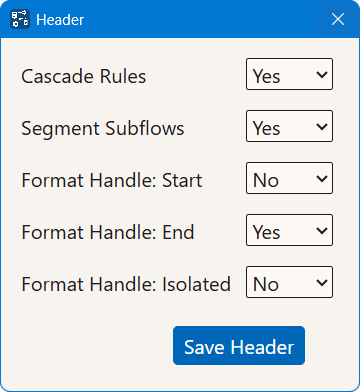
- Select Yes or No in the
Cascade Rules drop-down list.When set to Yes, the segmentation engine examines all language maps whose pattern matches the source language and accumulates rules from each associated language rule. When set to No, accumulation stops after the first matching language map is found.
- Select Yes or No in the
Segment Subflows drop-down list.A subflow is text embedded inside inline markup that should be treated separately, such as the
@altattribute text of an image tag. When set to Yes, subflow text is segmented according to the active rules. When set to No, subflow text is kept as a single segment regardless of the rules. - Select Yes or No in the
Format Handle: Start drop-down list.Controls how an opening inline formatting code (the start of a paired code) is handled when a segment break falls immediately after it. When set to Yes, the opening code is included in the segment being closed. When set to No (default), the segment is closed before the code, and the code is placed at the start of the following segment.
- Select Yes or No in the
Format Handle: End drop-down list.Controls how a closing inline formatting code (the end of a paired code) is handled when a segment break falls immediately after it. When set to Yes (default), the closing code is included in the segment being closed. When set to No, the segment is closed before the code, and the code is placed at the start of the following segment.
- Select Yes or No in the
Format Handle: Isolated drop-down list.Controls how an isolated inline formatting code (a code with no partner) is handled when a segment break falls immediately after it. When set to Yes, the isolated code is included in the segment being closed. When set to No (default), the segment is closed before the code, and the code is placed at the start of the following segment.
- Click the Save Header button.The header settings are updated in the SRX file.
‣ Parent topic: Common Tasks