Concordance Search
A concordance search allows you to search for a given text in one or more Memories.
About this task
You can search for text while translating a project or from the
Memories tab.
Procedure
- Select the memory to search
- If you are searching from a translation tab, make sure a memory is selected in the Memory drop-down.
- If you are searching from the Memories tab, select one or more memories for performing the search.
To select more than one memory in Memories tab, hold the [Ctrl] key ([Cmd] key on macOS) while clicking on the memories of your interest - Select ([Ctrl+Y] on Windows/Linux,
[Cmd+Y] on macOS) from the main menu or click the
 button on the toolbar of the Memories tab or the
translation tab top toolbar.The Concordance Search dialog appears:
button on the toolbar of the Memories tab or the
translation tab top toolbar.The Concordance Search dialog appears: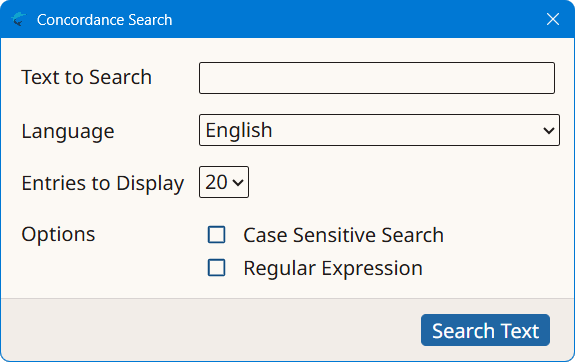
- Type the text to search in the Text to Search text
box.If you are searching from a translation tab, you can select text in source or target columns, press [Ctrl+Y] ( [Cmd+Y] on macOS) and the text will be automatically added to the Text to Search text box.
- Select the language to use when performing the search using the
Language drop-down.Language value is automatically adjusted if the Concordance Search dialog is opened with a keyboard shortcut after selecting source or target text in a translation tab.
- Select the maximum number of entries to display in the Entries to Display drop-down.
- Optionally, select the Case Sensitive Search checkbox if you want to search only for entries that exactly match the text entered on the Text to Search text box.
- Optionally, select the Regular Expression checkbox if the text entered in the Text to Search box should be treated as a regular expression for searching.
- Click the Search Text button
Results
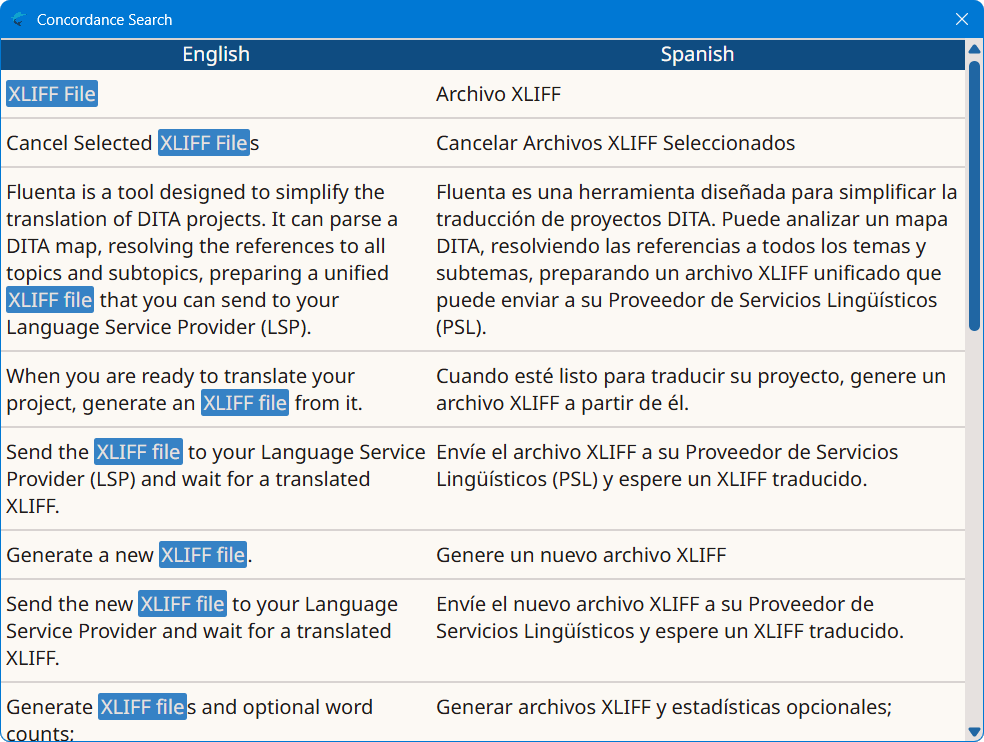
A search is performed in the selected memories and results are displayed in a dialog
like this:
‣ Parent topic: Common Tasks