Add Memory
Follow these steps to create a Memory for storing your Translation Memory (TM) data.
Procedure
- Select from the main menu or click the
 button on the toolbar of the Memories tab.The Add Memory dialog appears: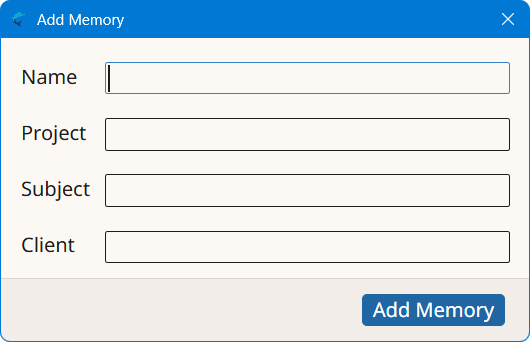
- Type a descriptive name for the new memory in the Name text box.
- Optionally, enter a project description for the new memory in the Project box, or select an existing value from the drop-down list.
- Optionally, enter a subject description for the new memory in the Subject box, or select an existing value from the drop-down list.
- Optionally, enter a client name for the new memory in the Client box, or select an existing value from the drop-down list.
- Click the Add Memory button to create a new memory.
‣ Parent topic: Memories