Import TMX File
Follow these steps to import a TMX file into a Swordfish memory.
Procedure
- In the Memories tab, select the memory into which you want to import a TMX file by clicking on it.
- Select from the main menu or click the
 button on the toolbar of the Memories tab.The Import TMX File dialog appears: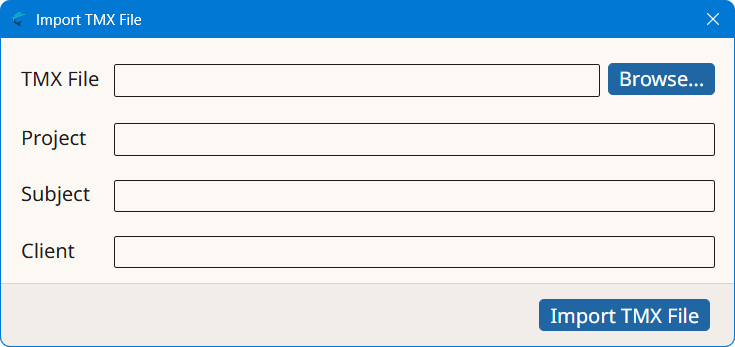
- Type the name of the TMX file to import in the TMX File text box or click the Browse... button next to it to select a TMX file from the file system.
- Optionally, enter a project description for the TMX data in the Project box, or select an existing value from the drop-down list.
- Optionally, enter a subject description for the TMX data in the Subject box, or select an existing value from the drop-down list.
- Optionally, enter a client name for the TMX data in the Client box, or select an existing value from the drop-down list.
- Click the Import TMX File button.
Results
An import process is started. The number of imported entries is displayed when the
import
process completes.
‣ Parent topic: Memories