Convert Excel File to TMX
About this task
Procedure
- In main menu, select option or click the
 Convert Excel File to
TMX button on the top toolbar.The following dialog appears:
Convert Excel File to
TMX button on the top toolbar.The following dialog appears: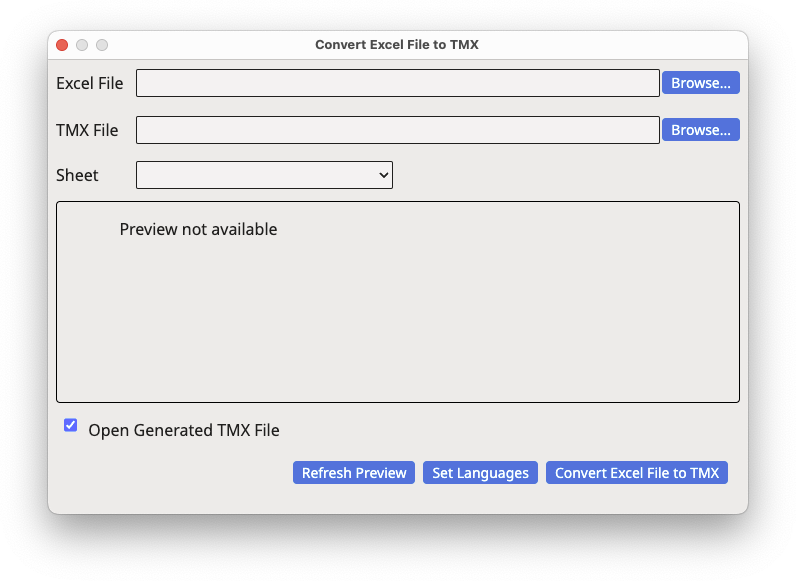
- Type the name of the Excel file to be converted in the Excel
File text box or use the associated
Browse... button to select a file from the
system.A preview of the the initial ten rows of the first worksheet is automatically loaded when you use the Browse... button:
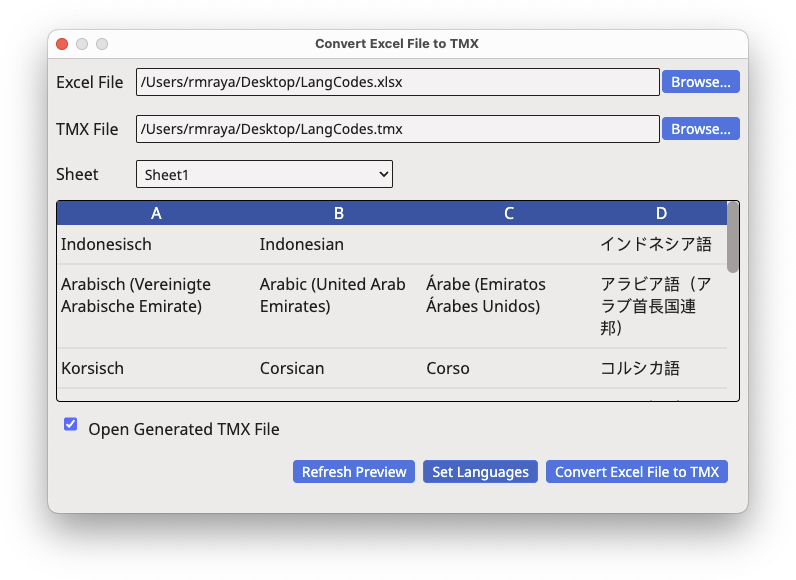
- If you typed an Excel file name on the Excel File text box, click the Refresh Preview button to generate a preview.
- Type the name of the TMX file to generate in the TMX File text box or use the associated Browse... button to select a file name and location.
- Use the Sheet drop-down control to select the worksheet that you want to convert.
- Click the Set Languages button if language codes are not
included in the file or you wish to change the automatically detected
ones.The following dialog appears:
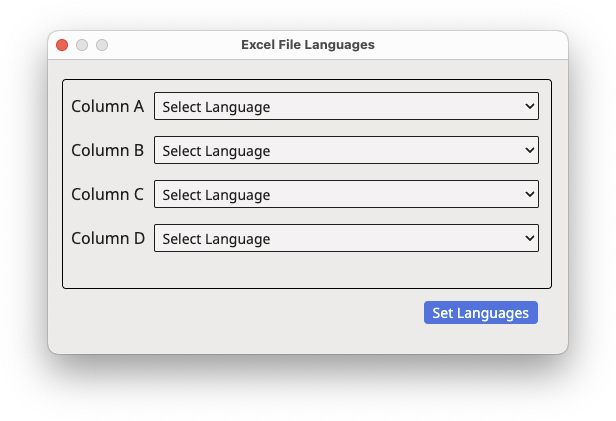
- Use the drop-down selectors to associate a language to each column. Click on
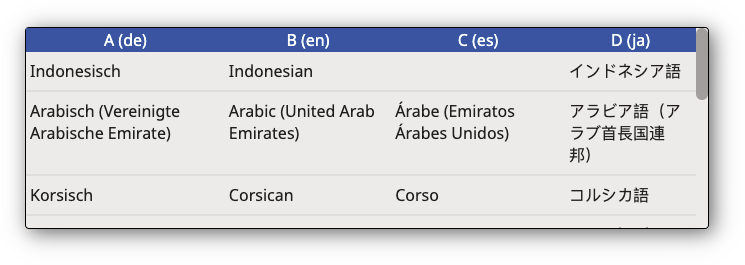
the Set Languages button when finished.The preview panel is updated to display selected languages for each column:
- Click the Convert Excel File to TMX button.
Results
A TMX file containing all text from the Excel document is generated in the selected location.‣ Parent topic: Conversion Tasks