Maintenance Dashboard
Follow these steps to optimize a TMX file using a simplified dialog.
About this task
Maintenance Dashboard allows you to perform maintenance tasks
in a simplified dialog that incorporates several actions available in
Tasks menu.
Procedure
- Open the TMX file that you want to modify.
- In main menu, select or click the
 Maintenance
Dashboard button on the top toolbar.The following dialog appears:
Maintenance
Dashboard button on the top toolbar.The following dialog appears: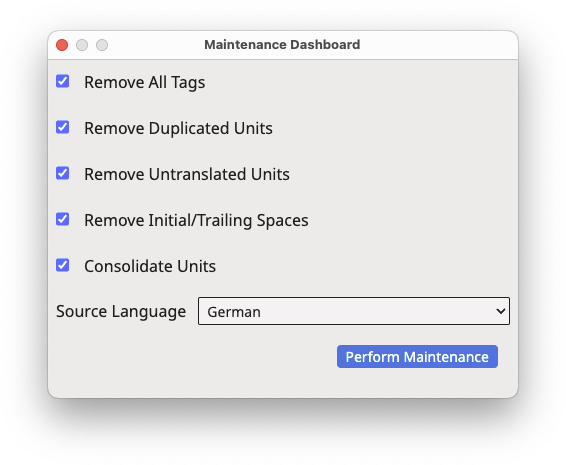
- Select the corresponding checkboxes for all tasks that you want to
perform:
- Remove All Tags: remove all inline tags from the TMX file.
- Remove Duplicated Unis: remove duplicated translation units.
- Remove Untranslated Units: remove all untranslated units.
- Remove Initial/Trailing Spaces: remove spaces at the start and end of all language entries.
- Consolidate Units: merge translation units that share a common source language entry.
- If you selected Remove Untranslated Units or Consolidate Units, select the source language of the TMX file using the Source Language drop-down.
- Click the Perform Maintenance button.
Results
A maintenance process is started and an indicator is displayed on screen while all selected tasks are performed.‣ Parent topic: Maintenance Tasks