Merge TMX Files
Follow these steps to merge the content of two or more TMX files into a larger one.
Procedure
- In main menu, select .The following dialog appears:
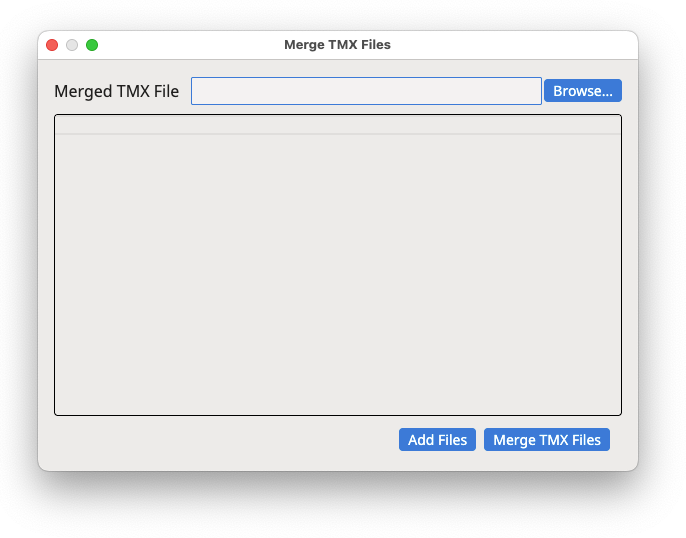
- Enter the name of the file that will contain all merged data in the Merged TMX File text box or click the Browse... button to select a file from the file system.
- Use the Add Files button to select the files to be
merged from the file system.The dialog shows added files:
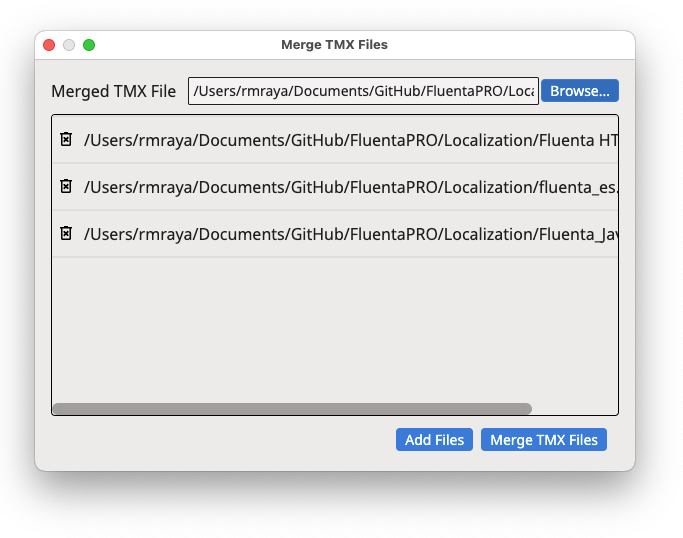
- If you want to remove files from the list, click the corresponding
Remove File buttons (
 ) on the
leftmost column.
) on the
leftmost column. - Select the Open Generated TMX File checkbox if you want the merged file to open automatically in the editor once merging completes.
- Click the Merge TMX Files button.
Results
A progress dialog is displayed while a TMX file containing data from all selected files is created in the indicated location. If the Open Generated TMX File checkbox was selected, the new file opens automatically in the editor.‣ Parent topic: Maintenance Tasks