Procedure
- Open the preferences dialog:
- On Windows or Linux menu, select .
- On macOS main menu, select .
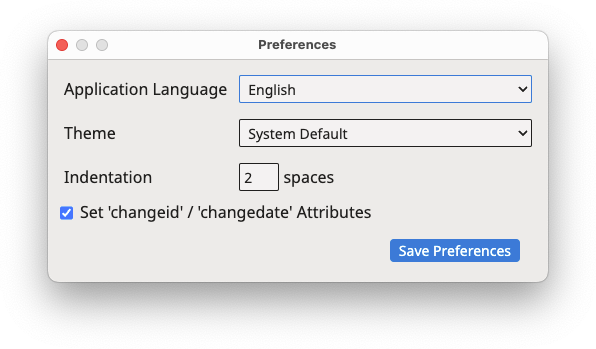
The following dialog appears:
- Use the Application Language drop-down to select the
language used in TMXEditor graphical user interface.
Changes to the application language will take effect after you restart the
program.
- Use the Theme drop-down to select the colors used in the
graphical user interface. Available options are:
- System Default: automatically selects Dark or Light colors
according to the preferences set in the operating system.
- Dark: Uses dark background with white text.
- Light: Uses light grey background with dark text.
- High Contrast: Dark theme with enhanced contrast.
- Select the number of spaces used to indent XML elements in the TMX file using
the Indentation selector.
Note: Indentation helps in visually understanding the structure of an
XML file when viewing it as plain text but is not required for processing TMX
files with translation tools.
- Select the Set 'changeid' / 'changedate' Attributes
checkbox if you want to enable the registration of the user who last modified an
item or file and the date the change was made.
- Click the Save Preferences button to save and activate
selected settings.
Results
Theme changes are applied immediately. Changing the application language requires
a
restart. Indentation is applied the next time a file is saved.