Find and Replace Text
Follow these steps to find text in the current TMX file and, optionally, replace it.
Procedure
- Open the TMX file that you want to modify.
- In main menu, select ([Ctrl+F] on Windows/Linux,
[Cmd+F] on macOS) or click the
 Search/Replace Text button on the top
toolbar.The following dialog appears:
Search/Replace Text button on the top
toolbar.The following dialog appears: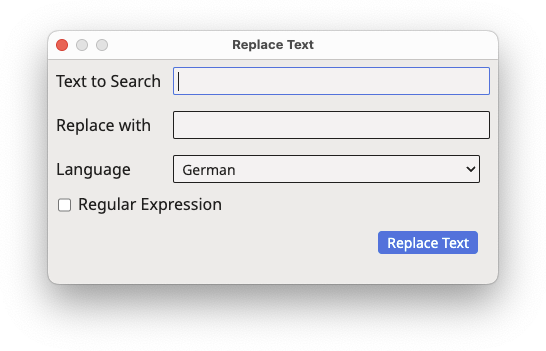
- Enter the text to look for in the Text to Search text box.
- Select the Case Sensitive checkbox if you want the search to match the exact case of the search text, and the Regular Expression checkbox if you want the search text to be interpreted as a regular expression.
- Click the Find button to locate and select the first
match, or the Find Next button to move to the next
match.The matching text is selected in the editing grid.
- To replace only the currently selected match, enter the replacement text in the
Replace with text box and click the
Replace button.The Replace button is enabled only after a match has been found with Find or Find Next.
- To replace every match in a single operation, enter the replacement text in the
Replace with text box and click the
Replace All button.A confirmation dialog is displayed before the replacement is performed, as this action cannot be undone.
Results
Depending on the button used, either the currently selected match or every match of the text entered in Text to Search (or of the given regular expression) is replaced with the text entered in the Replace With text box.‣ Parent topic: Maintenance Tasks