Change Language
Follow these steps to replace one language code with another throughout the open glossary.
About this task
Use this task to correct the language assigned to a glossary, for example when a
column was created with the wrong language code.
Procedure
- Select from the main menu or click the
 button on the toolbar.The Change Language dialog is displayed: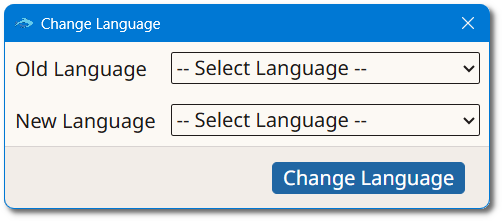
- Select the language currently used in the glossary from the Old Language drop-down list.
- Select the language to use instead from the New Language drop-down list.
- Click the Change Language button.
Results
Every term and definition column that used the old language is reassigned to the new
language.