Convert CSV File to GlossML Format
Follow these steps to convert a CSV or other delimited file to a GlossML glossary.
About this task
Use this task to turn a spreadsheet saved as CSV, or any delimited list of terms, into a glossary.
Procedure
- Select from the main menu.The Convert CSV to GlossML dialog is displayed:
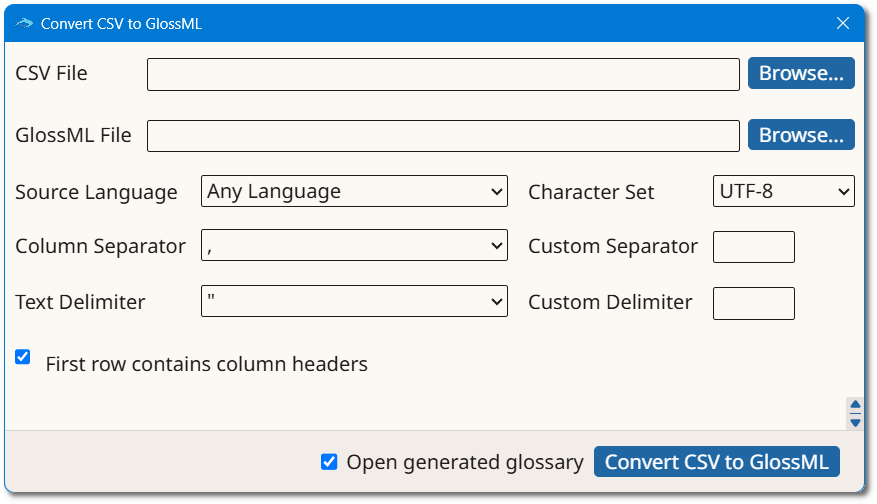
- Type the name of the CSV file in the CSV File box or click the Browse... button next to it to select an existing file from the file system.
- Type the name of the glossary to create in the GlossML File box or click the Browse... button next to it to select a name and location.
- Select the default language of the terms from the Source Language drop-down list.
- Adjust the Character Set, Column
Separator and Text Delimiter drop-down
lists until the data is correctly displayed in the preview. To use a character
that is not in the lists, select Custom Separator or
Custom Delimiter and type the character.
- Character Set
- The encoding used to store the text in the file, such as UTF-8. If it does not match the file, accented and non-Latin characters appear corrupted in the preview.
- Column Separator
- The character that separates one column from the next, usually a comma.
- Text Delimiter
- The character that encloses the text of a column, usually a double quote. It is needed when the text itself contains the character used as column separator.
- Optionally, select the First row contains column headers
checkbox.If the file was previously exported by Anchovy, selecting this option recognizes Anchovy's own header row and assigns each column's type and language automatically, which makes round-tripping a glossary easy. Anchovy does not interpret headers from files produced by other programs; for those, the column types must be assigned manually in the preview.
- The preview table at the bottom of the dialog shows the data split into columns.
Set the type of each column using the selector in its header.
Option Description Skip The column is ignored and not imported. Comment The column holds comments about the entry. Only one column can be mapped as Comment. Term The column holds terms. At least one column must be mapped as Term. Definition The column holds definitions. For Term and Definition columns, also select the language of the column. The Source Language is used as the default.The preview reflects the assigned column types: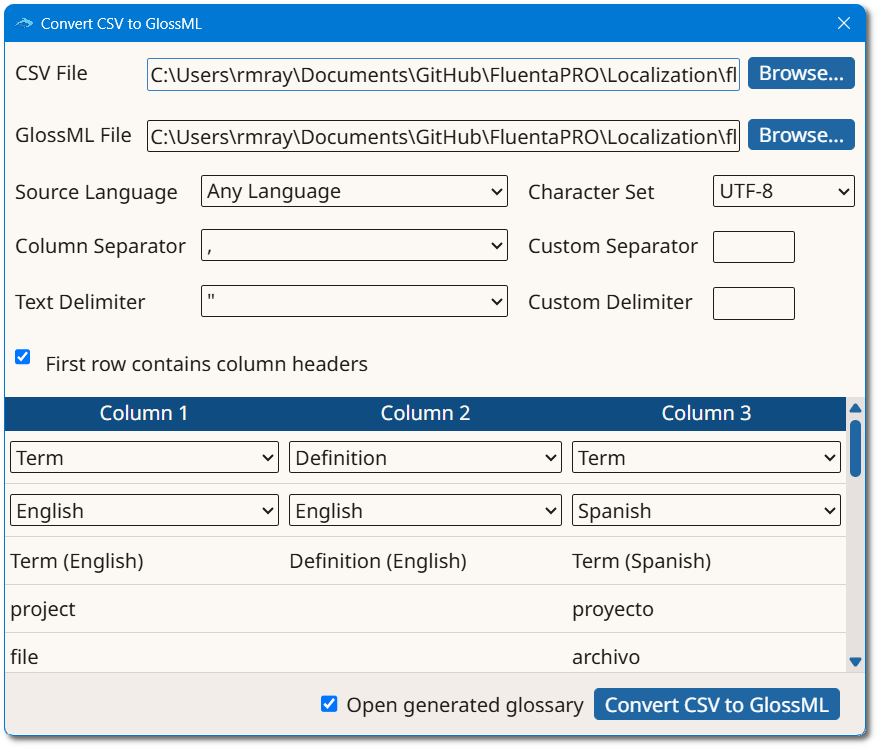
- Optionally, select the Open generated glossary checkbox to open the new glossary in Anchovy after conversion.
- Click the Convert CSV to GlossML button.
Results
A new glossary is created and stored in the selected location.