Create Glossary
Follow these steps to create a new glossary in GlossML format.
Procedure
- Select ([Ctrl+N] on Windows/Linux,
[Cmd+N] on macOS) from the main menu or click the
 button on the toolbar.The New Glossary dialog is displayed: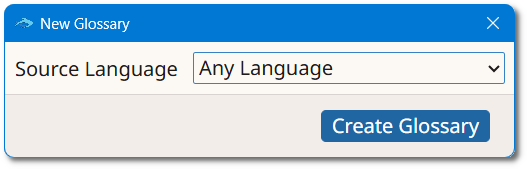
- Select the source language for the new glossary from the Source Language drop-down list.
- Click the Create Glossary button.
- Add content to the glossary and save it with ([Ctrl+S] on Windows/Linux,
[Cmd+S] on macOS), or click the
 button on the toolbar.
Results
A new glossary with columns for terms and definitions in the selected source language
is created and displayed in Anchovy.