View Glossary Properties
Follow these steps to review the properties of the open glossary and edit its comment.
Procedure
- Select from the main menu or click the
 button on the toolbar.The Glossary Information dialog is displayed, showing the source language, the languages present, the number of terms and the glossary comment: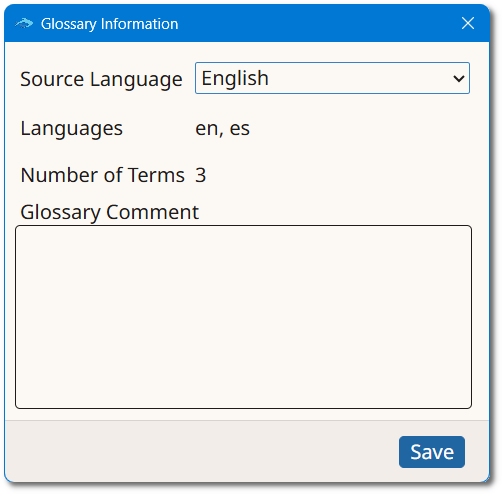
- Optionally, change the source language using the Source Language drop-down list.
- Optionally, edit the text in the Glossary Comment box.
- Click the Save button to store the changes.