Set Preferences
Follow these steps to configure the application language, the system catalog and the interface theme.
About this task
Anchovy needs to know how to locate the grammar rules (DTDs and Schemas) declared
in
the XML files it processes, such as TMX
and TBX documents. XML catalogs that follow
the specification published by OASIS are used to resolve the location of
those DTDs and Schemas.
Anchovy includes a complete XML catalog, inherited from OpenXLIFF, that supports the most common XML
grammars. Advanced users who work with custom grammars can select their own catalog
file to handle their XML files.
Procedure
- Open the Preferences dialog. On Windows and Linux, select . On macOS, select .The Preferences dialog is displayed:
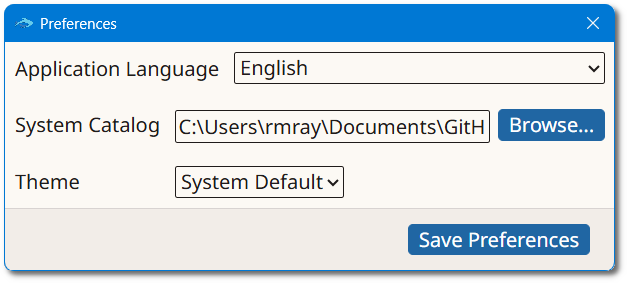
- Select the language of the user interface from the Application Language drop-down list.
- To use a custom XML catalog, type its location in the System Catalog box, or click the Browse... button next to it to select a catalog file from the file system. Leave the default value to use the catalog included with Anchovy.
- Select the interface theme from the Theme drop-down list: System Default, Dark, Light or High Contrast.
- Click the Save Preferences button.
Results
The selected preferences are applied. A change of application language takes effect
the next time Anchovy is started.