Search and Replace
Follow these steps to search for text in the open glossary and optionally replace it.
Procedure
- Select ([Ctrl+F] on Windows/Linux,
[Cmd+F] on macOS) from the main menu or click the
 button on the toolbar.The Search and Replace dialog is displayed: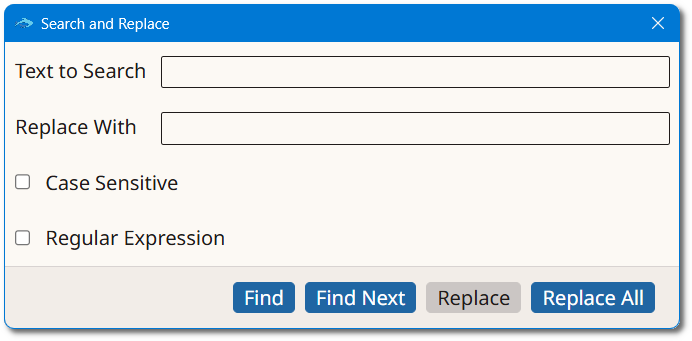
- Type the text to search for in the Text to Search box.
- Type the replacement text in the Replace With box.
- Optionally, select the Case Sensitive checkbox to match only text with the exact letter case entered.
- Optionally, select the Regular Expression checkbox to treat the search text as a regular expression.
- Click Find to search from the beginning of the glossary,
or Find Next to search from the currently selected
cell.When a match is found, the cell that contains the text is opened for editing and the matching text is selected.
- Click Replace to replace the current match, or
Replace All to replace every match in the
glossary.The Replace button is disabled until a match has been found with Find or Find Next.