First Registration - Evaluation Request
Register a Subscription Key or request a free 7-day evaluation the first time Anchovy is opened.
Procedure
- When Anchovy is opened from subscription installers for the first time, or when
the Subscription Key is not registered, the Register
Subscription dialog is displayed:
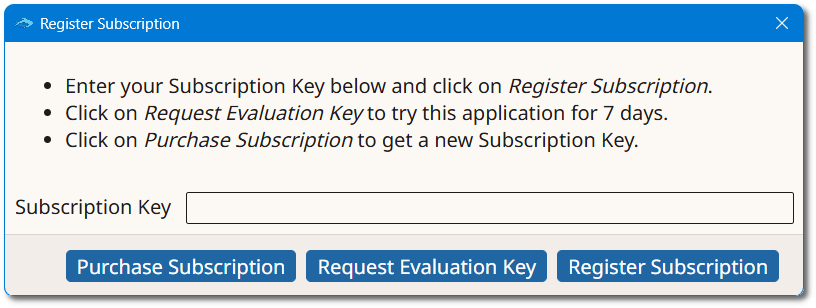
- If a Subscription Key is available, type it in the Subscription
Key text box and click the Register
Subscription button.On registration success, the main editing screen is presented.
- To test the program for 7 days without a Subscription Key, click the
Request Evaluation Key button.The Request Evaluation Key dialog appears:
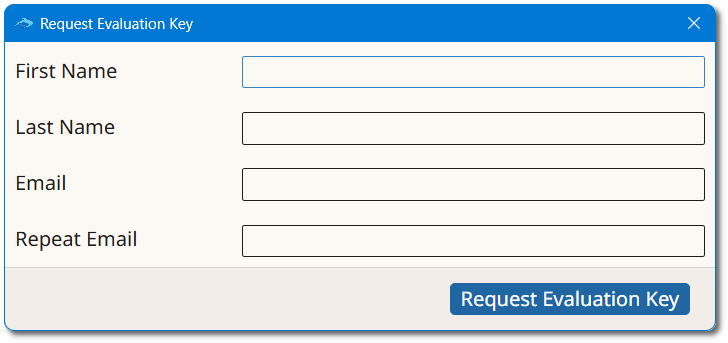
- Enter the requested data and click the Request Evaluation
Key button.On success, an email with the requested Evaluation Key is sent to the indicated address. Register the Evaluation Key as described above.