Add Configuration File
Procedure
- In XML Options tab of the
Settings dialog, click the Add
Configuration File button.The following dialog appears:
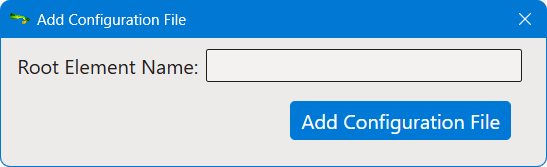
- Type the name of the root element of your XML files in the Root Element Name text box. The name of the root element is used to name the configuration file.
- Click the Add Configuration File button.The following dialog appears:
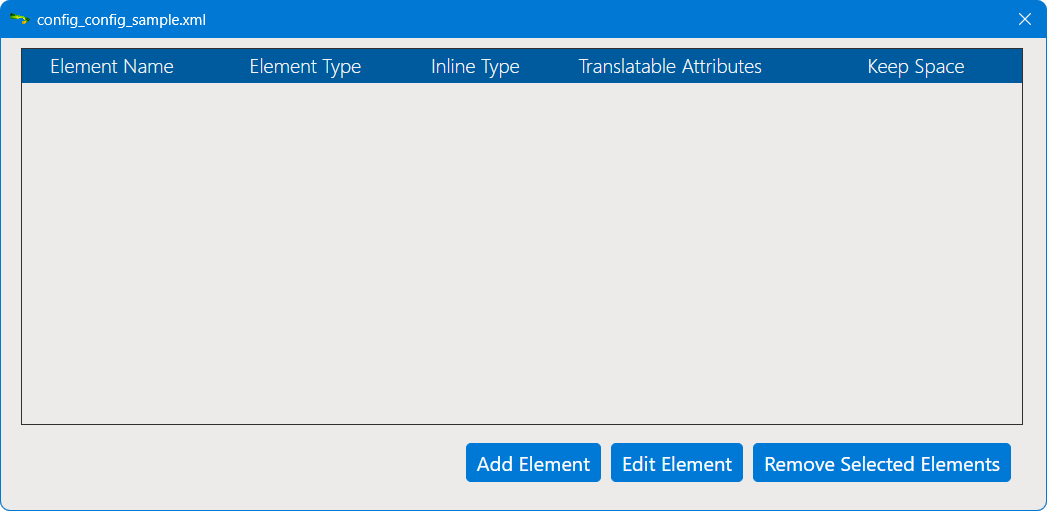
- Click the Add Element button to add the configuration of
an element.The Element Configuration dialog appears:
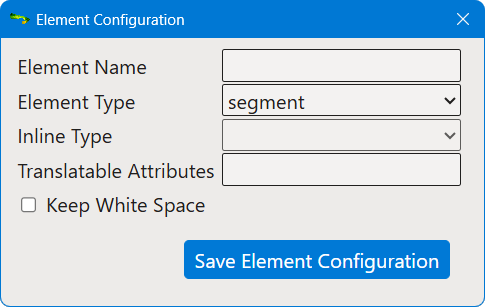
- Type the name of the element being added in the Element Name text box.
- Select the type of element in the Element Type drop-down
list. Available types are:
- segment: the selected element starts a new section of translatable text.
- inline: the selected element represents a change in formatting options and does not start a new section of translatable text.
- ignore: the selected element and its children should be ignored.
- If the element type is "inline", select the kind of formatting represented by the element in the Inline Type drop-down list.
- If the element has translatable attributes, enter their names separated by a ";" in the Translatable Attributes text box.
- If white space needs to be preserved when extracting text, select the Keep White Space check box.
- Click the Save Element Configuration button.
- Repeat the previous steps until all required elements have been configured.