Analyze Map Dialog
About this task
Use the Analyze Map dialog to generate and display a keys
analysis report.
Procedure
- In File menu, select Analyze Map
option or click the
 Analyze Map button on the tool bar. You can also double-click on a map from the DITA Keys Analyzer user interface to open the Analyze Map dialog with a preselected map.The following dialog appears: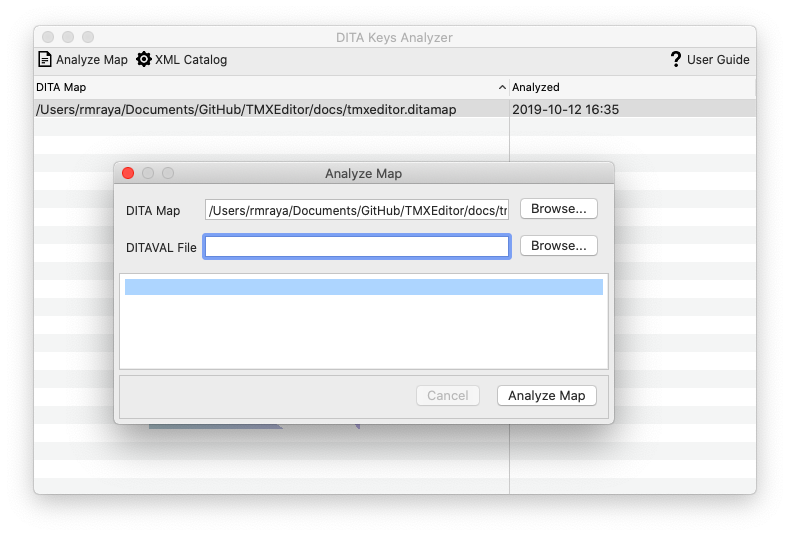
- Type the name of the DITA map that you want to analyze in the DITA Map text box or use the Browse... button to select a DITA map from the file system.
- If you want to use conditional processing when publishing, enter the name of the DITAVAL file in the DITAVAL File text box or click the Browse... button to select the DITAVAL file from the file system.
- Click the Analyze Map button.You can click the Cancel button at any time to stop the analysis process.
Results
The selected DITA map is parsed and all key definitions are collected. A folder namedout is created in the directory where the DITA map is located
and the analysis report is saved there. The report is automatically displayed in the
system's default web browser.