Step 2: Align extracted segments
Use these options to correct alignment errors when necessary
- Use the buttons that appear on the main toolbar, or their equivalent entries from
the
Edit menu, to correct the segments.
- To edit the content of the source or translation text box, click on a cell and modify
its text. Save your changes with the Confirm Edit button (
 ) or discard them using
the Cancel Edit button (
) or discard them using
the Cancel Edit button ( ).
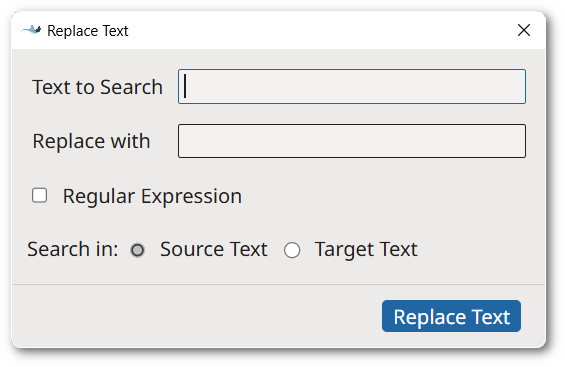
). - Use the Replace Text button (
 ) to replace text anywhere in the document using the Replace
Text dialog.
) to replace text anywhere in the document using the Replace
Text dialog.
- Use the Move Segment Down (
 ) and Move
Segment Up (
) and Move
Segment Up ( ) buttons to move a selected cell up and down until it matches the
corresponding source/translation in the other column.
) buttons to move a selected cell up and down until it matches the
corresponding source/translation in the other column. - If you need to split the text in a source or target cell to match the counterpart
in
the other column, click on the cell and put the cursor where you want the division
to
happen. Finally, click on the the Split Segment button (
 ) .
) . - If you need to add missing text, click the cell above the correct location and click
the Insert Segment Below button (
 ).
). - Use the Merge with Next Segment button (
 ) to combine the text on
a selected source or translation cell with the text of the following segment.
) to combine the text on
a selected source or translation cell with the text of the following segment. - Use the Remove Segment button (
 ) to delete the selected
source or translation cell.
) to delete the selected
source or translation cell. - Use the Remove Tags button (
 ) to remove inline tags from all segments at
once.
) to remove inline tags from all segments at
once. - Use the Remove Duplicates button (
 ) to remove all duplicate entries at once.
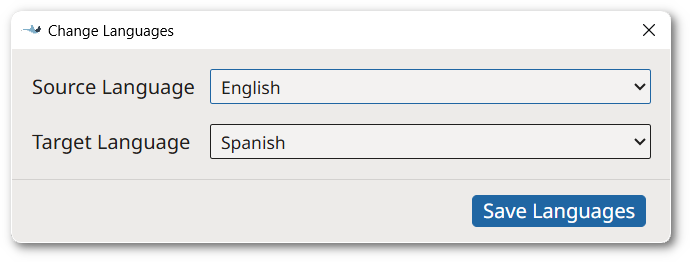
 - Use the Change Languages button (
 ) to modify the languages in your file using the the Change
Languages dialog.
) to modify the languages in your file using the the Change
Languages dialog.
- To edit the content of the source or translation text box, click on a cell and modify
its text. Save your changes with the Confirm Edit button (
- Use these keyboard shortcuts for faster editing. On macOS replace
'Ctrl' with 'Cmd' and
'Alt' with 'Option'.
Button Keyboard Shortcut Action Ctrl+F Opens the Replace Text dialog Alt+Enter Confirm Edit Escape Cancel Edit Alt+Ctrl+Down Arrow Move Segment Down Alt+Ctrl+Up Arrow Move Segment Up Ctrl+L Split Segment Ctrl+M Merge with Next Segment Alt+Ctrl+I Insert Segment Below Ctrl+D Remove Segment Ctrl+X Cut Ctrl+C Copy Ctrl+V Paste Ctrl+A Select All Ctrl+Z Undo Page Up Select Segment Above Page Down Select Segment Below Alt + Right Arrow Select Target Segment Alt + Left Arrow Select Source Segment