Program Settings
Procedure
- On macOS, select on the menu or press [
Cmd + ,]. - On Windows or Linux menu, select .
The following dialog appears: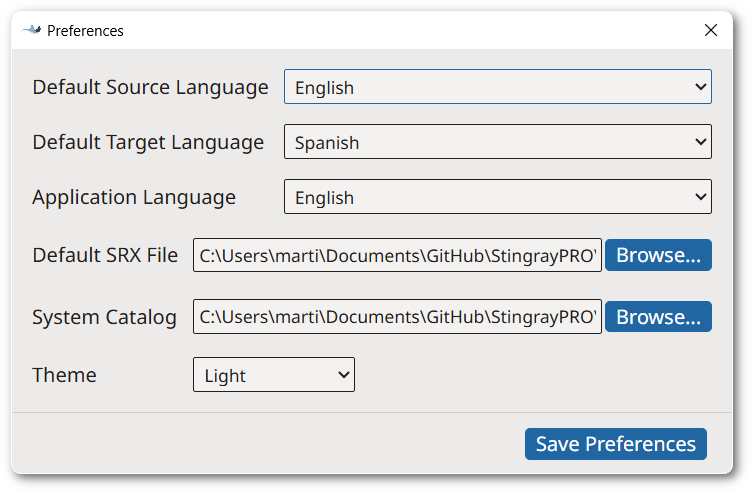
- On macOS, select on the menu or press [
- Use the Default Source Language and Default Target Language drop-down selectors to define the languages that Stingray will use as default when creating an alignment file.
- If you prefer to do segmentation using a custom set of SRX rules, enter the path of the SRX file in the Default SRX File text box or use the Browse... button next to it to select a file from the file system.
- If you align custom XML files that require an XML catalog, enter the path to your catalog in the Default Catalog text box or use the Browse... button next to it to select a catalog file from the file system.
- Use the Theme drop-down to control the application's
default appearance. Available options are:
- Select System Default to let your Operating System control the default text/background color combination (this option is not supported in some Linux distributions).
- Select Dark to work with light text on dark background.
- Select Light to work with dark text on light grey background.
- Select High Contrast for a dark theme with enhanced contrast.
- Click the Save Preferences button to save and activate selected settings.
Results
Theme changes are adopted immediately. All other settings are applied the next time
an alignment file is created.