Import SDLTM File
Follow these steps to import an SDLTM file into a Swordfish memory.
Procedure
- In the Memories tab, select the memory into which you want to import an SDLTM file by clicking on it.
- Select from the main menu or click the
 button on the toolbar of the Memories tab.The Import SDLTM File dialog appears: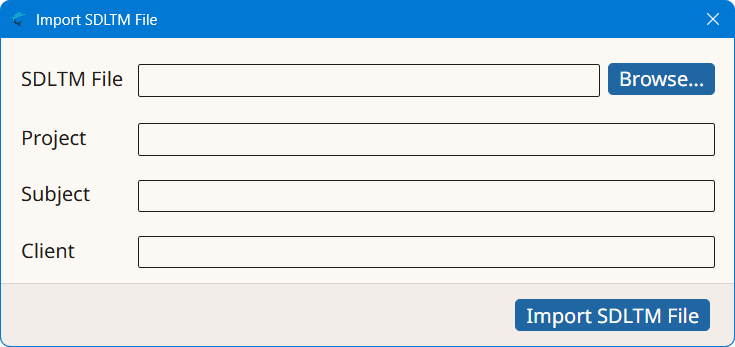
- Type the name of the SDLTM file to import in the SDLTM File text box or click the Browse... button next to it to select an SDLTM file from the file system.
- Optionally, enter a project description for the SDLTM data in the Project box, or select an existing value from the drop-down list.
- Optionally, enter a subject description for the SDLTM data in the Subject box, or select an existing value from the drop-down list.
- Optionally, enter a client name for the SDLTM data in the Client box, or select an existing value from the drop-down list.
- Click the Import SDLTM File button.
Results
An import process is started. The number of imported entries is displayed when the
import
process completes.