Manage Review Comments
Reviewers can add notes and comments to files and segments using special dialogs in
Swordfish.
File Comments
The Files panel, shown on the left side of a translation tab,
contains a list of all files included in the project and looks like this:
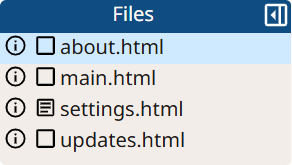
- Clicking on the file name opens the first segment of the file for translation.
- Clicking on the
 icon next to a file opens a dialog with information about it.
 - Clicking on the
 (has comments) or
  (does not have comments) icons opens the Review Comments
dialog for the file.
(does not have comments) icons opens the Review Comments
dialog for the file.
When you click on the (no comments) icon, the initial Review Comments dialog
appears:
(no comments) icon, the initial Review Comments dialog
appears: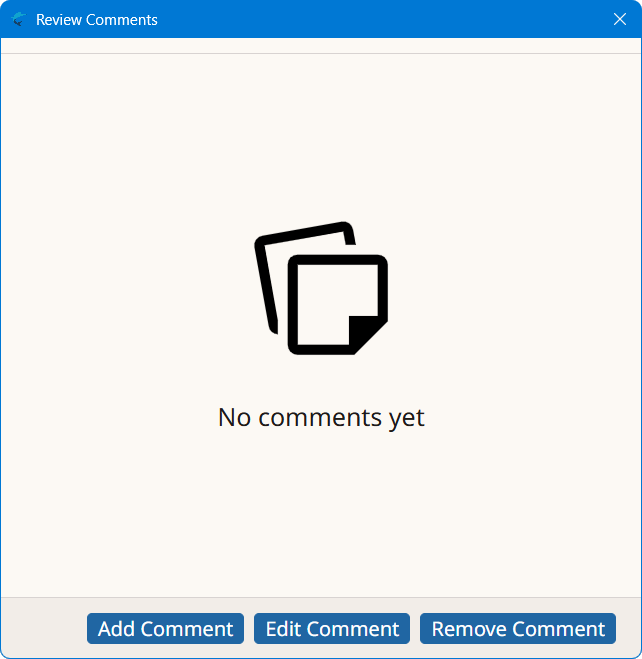
-
Click the Add Comment button to add a new comment to the existing list. When you click on it, the Comments dialog appears:
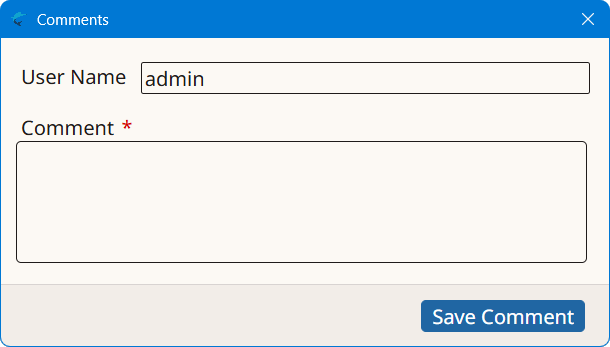 Type the information to convey in the Comment text box and click the Save Comment button. The Review Comments dialog is updated and shows a new comment tab:
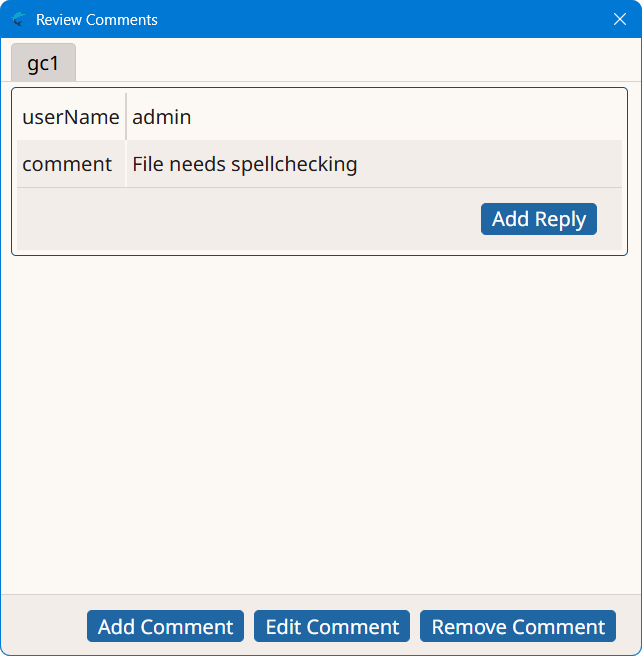 Click the Add Reply button to open the Comment Reply dialog for responding:
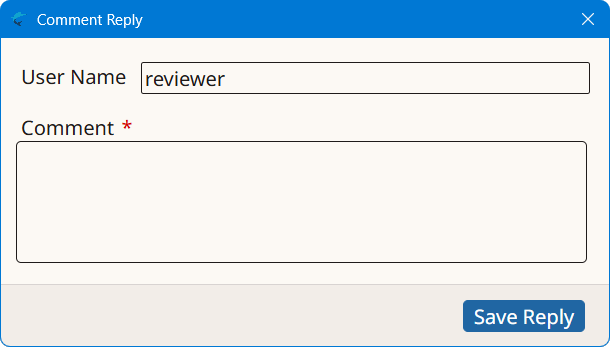 Type the reply in the Comment text box and click the Save Reply button to update the Review Comments dialog: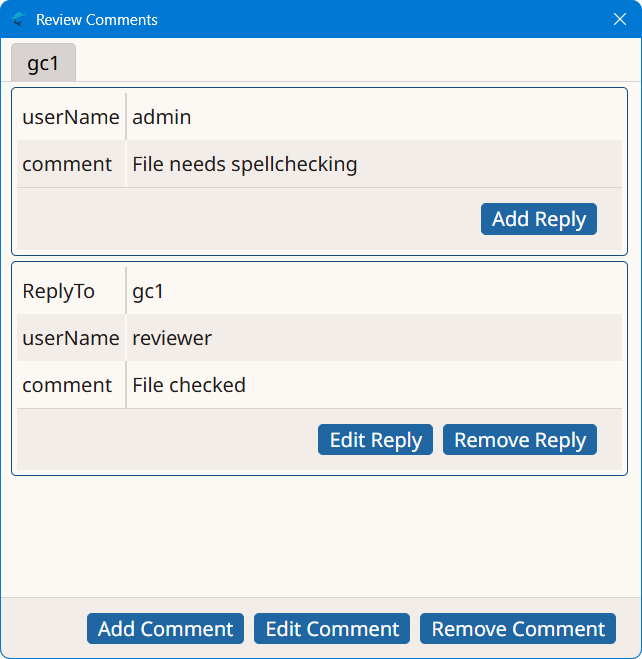
Segment Comments
When a segment has review comments, the Review comments icon,
( ) is displayed in the center column of the translation view. Clicking on the icon
opens the Review Comments dialog for the selected segment.
) is displayed in the center column of the translation view. Clicking on the icon
opens the Review Comments dialog for the selected segment.
) is displayed in the center column of the translation view. Clicking on the icon
opens the Review Comments dialog for the selected segment.Select ([Alt+F6] on Windows/Linux,
[Option+F6] on macOS) from the main menu or click the  button on the toolbar of the translation tab top toolbar at any time to show or
hide the Review Comments dialog for the active segment.
button on the toolbar of the translation tab top toolbar at any time to show or
hide the Review Comments dialog for the active segment.
button on the toolbar of the translation tab top toolbar at any time to show or
hide the Review Comments dialog for the active segment.Segment review comments include more details than file comments. Comments are entered
using
an enhanced dialog that looks like this:
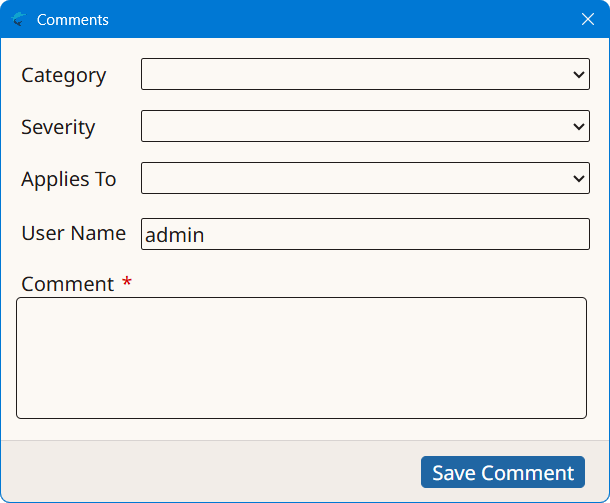
The Categories drop-down contains a list of predefined values for
categorizing the comment. The list includes:
- Mistranslation
- Accuracy
- Terminology
- Consistency
- Grammar
- Spelling
- Punctuation
- Semantics
- Country-specific usage
- Other
The Severity drop-down contains a list of values for grading the
reported comment. Possible values are:
- Minor
- Major
- Critical
The Applies To drop-down allows you to indicate if the comment
applies to the source or target part of the segment.
Clicking on the Save Comment button adds a new comment tab to the
Review Comments dialog.
Replying to a segment comment is done in a dialog like this:
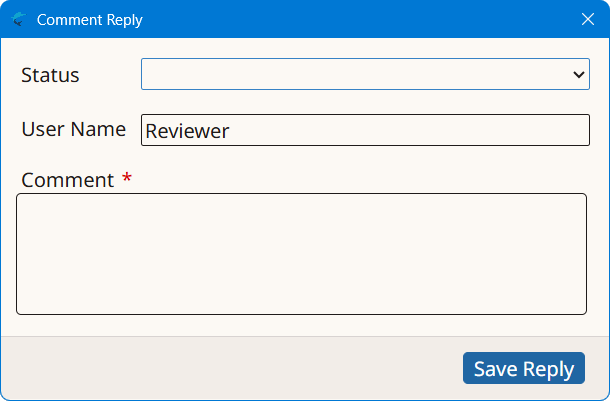
The Status drop-down allows you to select an optional resolution for
the comment. Possible values are:
- Fixed
- Ignore
- Won't Fix
- Nothing to do