Bilingual Term Extraction
Follow these steps to extract bilingual term candidates from a translated XLIFF file into a glossary.
About this task
Bilingual term
extraction reads a translated XLIFF file and pairs source and target term
candidates in a bilingual glossary.
Procedure
- Select from the main menu or click the
 button on the toolbar.The Bilingual Term Extraction dialog is displayed: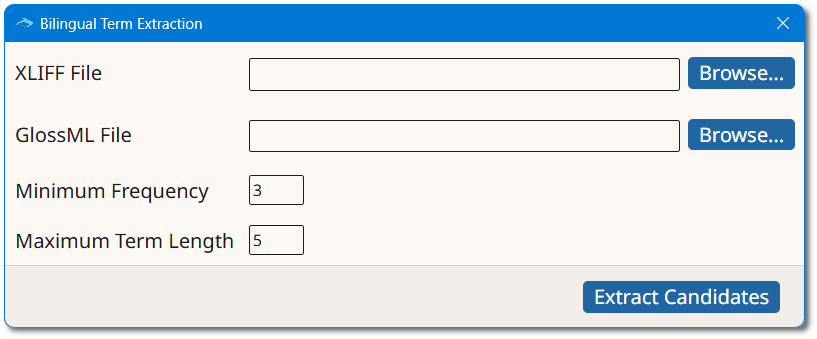
- Type the name of the translated document in the XLIFF File box or click the Browse... button next to it to select it from the file system.
- Type the name of the glossary to create in the GlossML File box or click the Browse... button next to it to select a name and location.
- Indicate in the Minimum Frequency selector the minimum
number of times a candidate term must appear.A higher value keeps only terms that appear often, producing fewer but more reliable candidates. A lower value surfaces more candidates, including infrequent ones.
- Indicate in the Maximum Term Length selector the maximum
number of words a candidate term can contain.Term length is measured in words. Set it to 1 to extract only single words, or to a higher value to also capture multi-word phrases.
- Click the Extract Candidates button.The file is analyzed and the list of candidate terms is displayed in the Bilingual Term Candidates dialog:
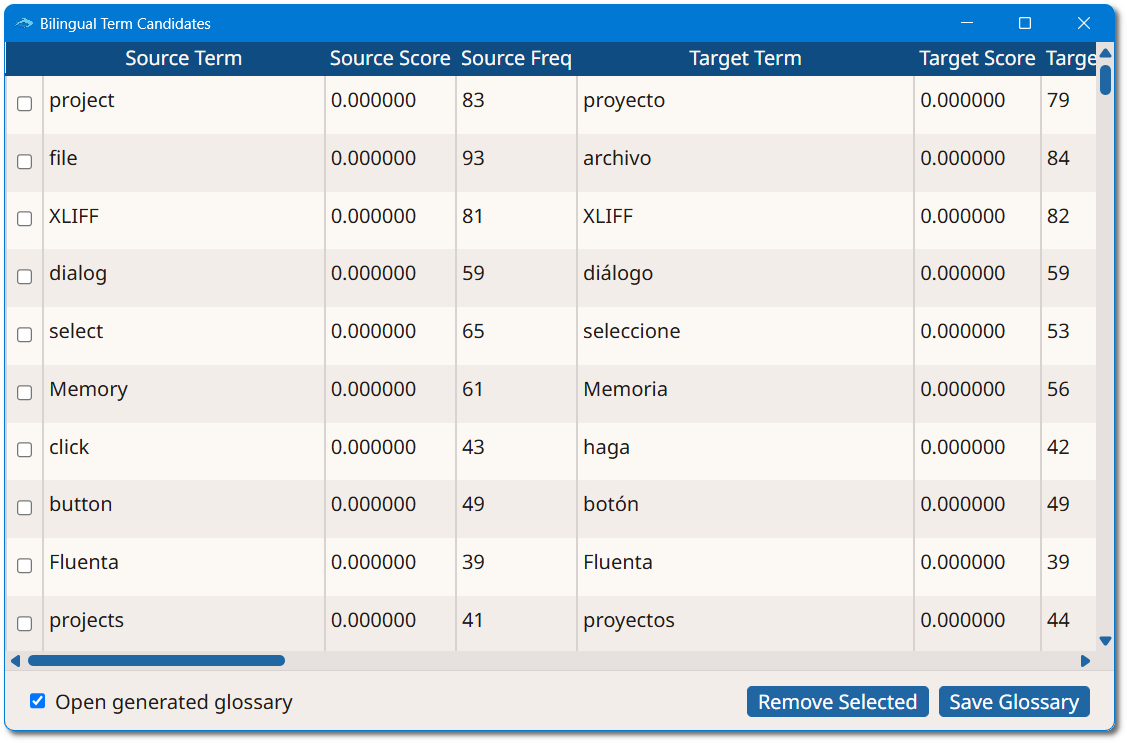
- Review the list of candidates. Select the candidates to discard and click the
Remove Selected button.Each candidate pair is shown with a Source Term and a Target Term, each with its own Score and Frequency. These are statistically relevant for deciding what to propose, but they do not need to be interpreted. Read the candidate terms and keep or discard each pair using professional judgement.
- Optionally, select the Open generated glossary checkbox to open the new glossary in Anchovy after saving.
- Click the Save Glossary button to store the remaining candidates in the glossary.
Results
A bilingual glossary containing the selected term candidates is created and,
optionally, opened in Anchovy.