Translate a Segment with AI
Swordfish supports the use of AI for translating segments directly using Machine Translation engines such as ChatGPT or Claude. It also generates prompts tailored to work with any AI engine.
See the Machine Translation
chapter for an explanation of how to use ChatGPT, Mistral or Antyhropics' Claude as
traditional Machine Translation engines.
Prompt Generation
Swordfish generates detailed prompts for AI systems that are designed to produce
XLIFF
<target> elements that can then be inserted into a segment
during translation. |
NoteIf segment terms have been retrieved from a glossary, those terms are
automatically included in the prompt to improve the results generated by the AI
systems.
|
Translating a segment with AI involves these steps:
- Generate a prompt and copy it to the clipboard.
- Execute the prompt in an AI system and copy the response to the clipboard.
- Insert the response from the clipboard into the segment.
There are two options for generating an AI prompt:
- Generate a prompt and copy it automatically to the clipboard.
- Generate a prompt and open a dialog to allow editing the generated text.
Follow these steps to generate a prompt and copy it automatically to the
clipboard:
- Select a segment in the Translation Panel.
- Select ([Ctrl+Shift+C] on Windows/Linux, [Cmd+Shift+C] on macOS) from the main menu.
Follow these steps to open a dialog for editing the prompt:
- Select a segment in the Translation Panel.
- Select ([Ctrl+Shift+P] on Windows/Linux,
[Cmd+Shift+P] on macOS) from the main menu.
The AI Prompt dialog appears:
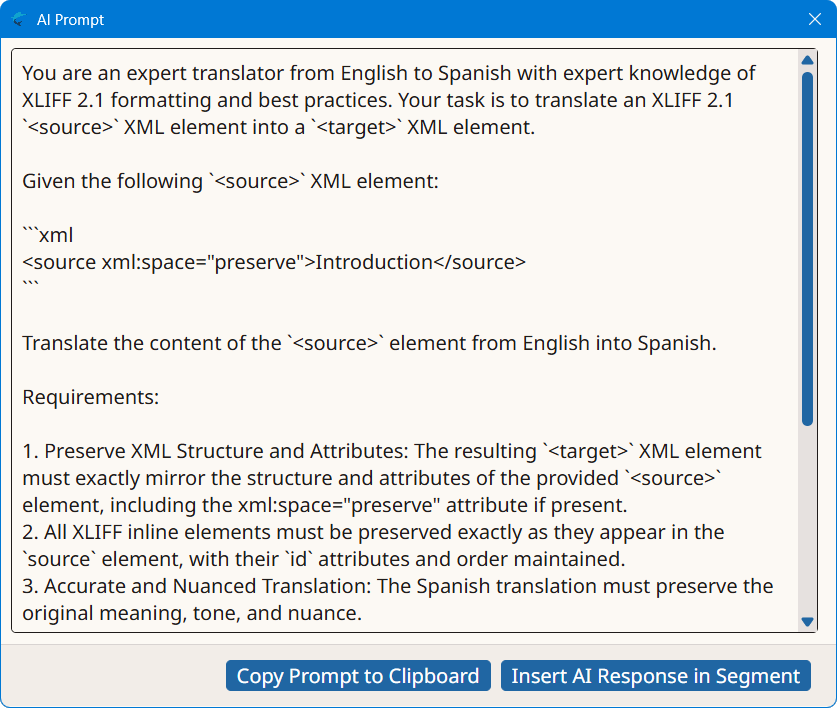
- Review and edit the prompt text if necessary.
- Click the Copy Prompt to Clipboard button.
Executing the Prompt
After you have copied the prompt to the clipboard, open an AI tool for running the
query.
|
NotePrompts generated by Swordfish have been tested and are known to work on these AI
systems:
|
Paste the content of the clipboard into the AI question box and submit the
request.
If necessary, scroll through the app content page and look for the answer. As the
answer is expected to be in the form of properly formatted XML, it is usually
displayed in a special box that includes a Copy button.
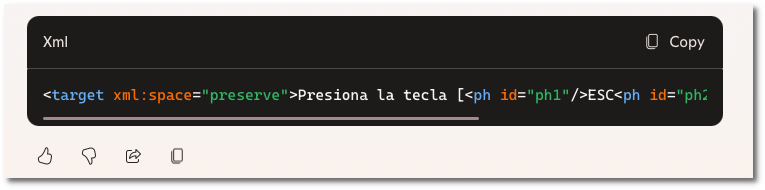
Finally, copy the AI response to the clipboard.